Scene 1 (0s)
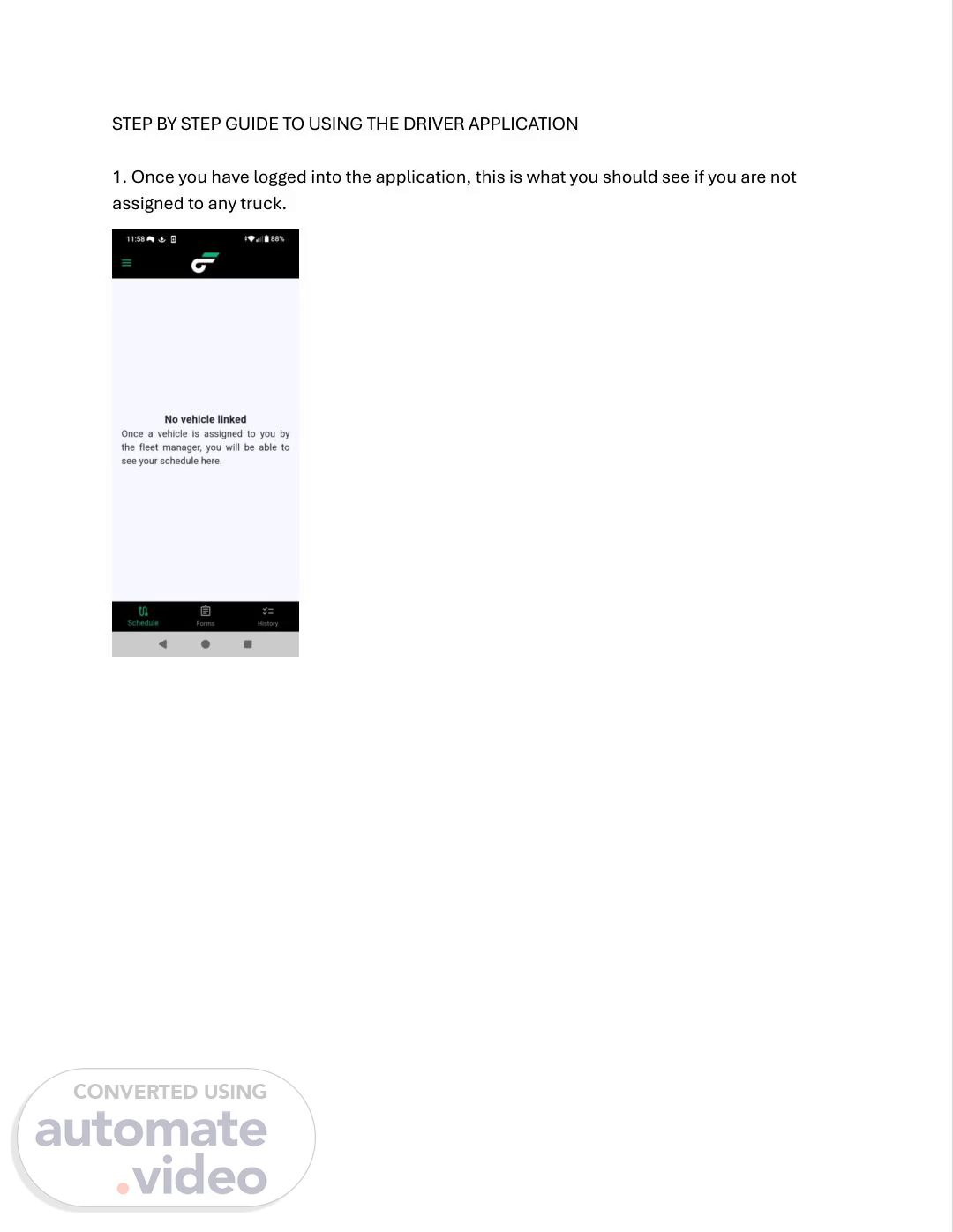
STEP BY STEP GUIDE TO USING THE DRIVER APPLICATION 1. Once you have logged into the application, this is what you should see if you are not assigned to any truck..
Scene 2 (12s)
2.If assigned to a truck without load instructions, this is what you will do. SEE 3. To check which truck and trailer are assigned to you, press the three lines at the top left. 4. "Once assigned a load, this message should be displayed.".
Scene 3 (28s)
5. In the top right corner, there is a section labeled "Status." This is where you can update what you are currently doing, as there are different options available. Initially, it will display "No Status," but you can change this by selecting the appropriate status that reflects your current activity..
Scene 4 (45s)
6. If you click on the view route map, it shows your current location and your destination..
Scene 5 (54s)
7.If you click on "Directions," you will receive directions to your destination. 8. Once you reach your destination, click on "Complete Task." The following should appear: swipe to the left to go on to the next one and fill out the required fields..
Scene 6 (1m 11s)
9. Once all the fields are filled, you should return to the main screen, where you will see a new section called "Written Complete." After filling all the fields, click on "Complete." After clicking on "Complete," please stop. Your next stop or instruction will appear. Note: You will only see your next stop or instruction if you have filled out all the required fields and clicked on "Complete." If you do not complete all fields, you will not receive the next instruction..