Scene 1 (0s)
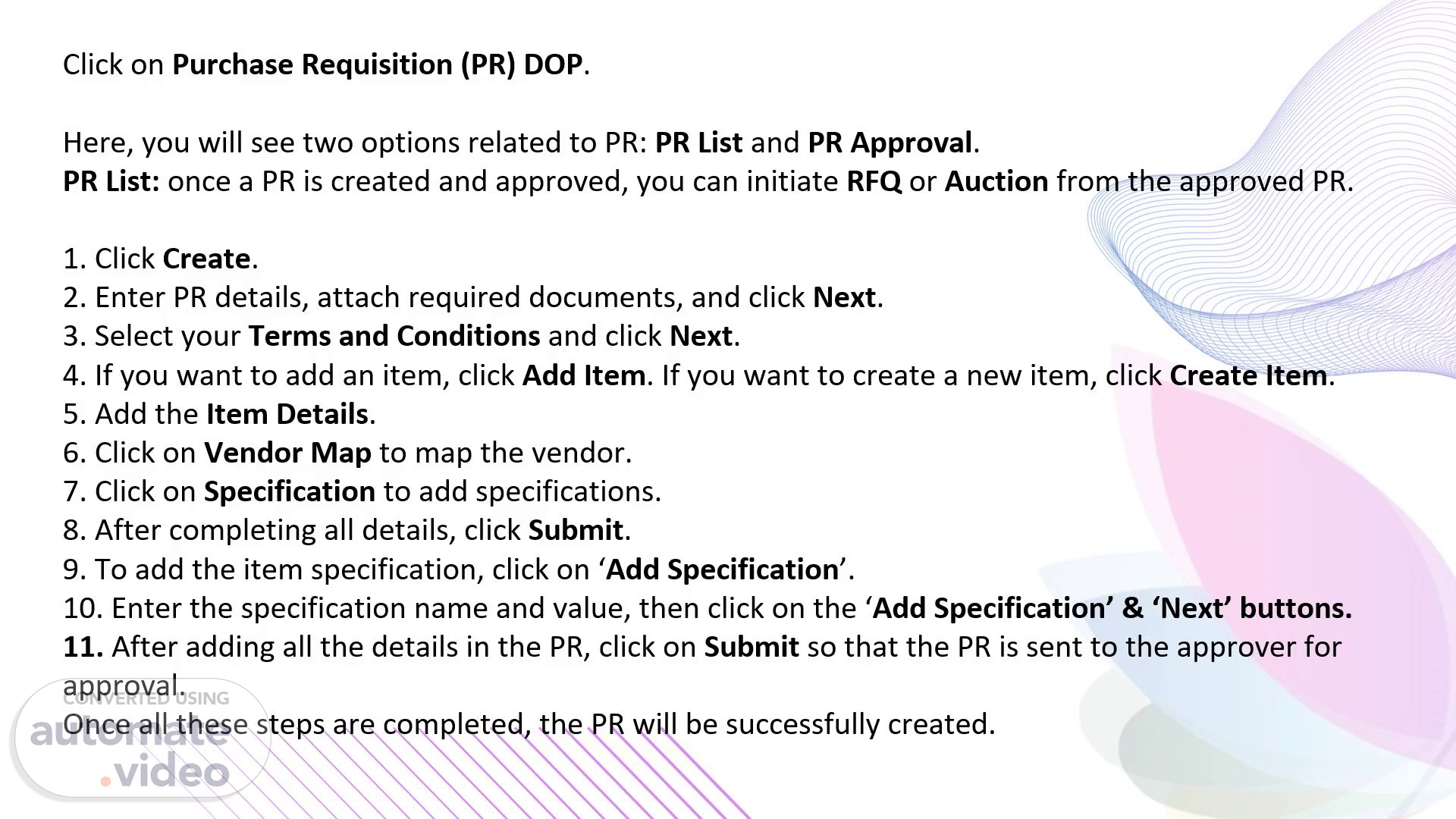
Click on Purchase Requisition (PR) DOP. Here, you will see two options related to PR: PR List and PR Approval. PR List: once a PR is created and approved, you can initiate RFQ or Auction from the approved PR. 1. Click Create. 2. Enter PR details, attach required documents, and click Next. 3. Select your Terms and Conditions and click Next. 4. If you want to add an item, click Add Item. If you want to create a new item, click Create Item. 5. Add the Item Details. 6. Click on Vendor Map to map the vendor. 7. Click on Specification to add specifications. 8. After completing all details, click Submit. 9. To add the item specification, click on ‘Add Specification’. 10. Enter the specification name and value, then click on the ‘Add Specification’ & ‘Next’ buttons. 11. After adding all the details in the PR, click on Submit so that the PR is sent to the approver for approval. Once all these steps are completed, the PR will be successfully created..
Scene 2 (48s)
Step 1: Initiate the process by clicking Create. [image] Kishan Company Offcer Q MENU RFQ NE-A eprocgenie Admin Dashboard Purchase Requisition Purchase Requisition Actions PR Numbers PR/2025/94878 T/2025/94877 PR/2025/94876 T/2025/94875 T/2025/94874 PR/2025/94873 T/2025/94872 T/2025/94871 T/2025/94870 PR/2025/94869 PR Name New pr test PR-2121 pr1212 TC-AUC-049 Purchase request New-pr-14 Search Created Date 20/12/2025 19/12/2025 19/12/2025 19/12/2025 18/12/2025 16/12/2025 15/12/2025 15/12/2025 15/12/2025 14/12/2025 RFQ Auction PR List PR Approval x x x x x Auction Purchase Order Status Completed Under Approval Pending Draft Draft Completed Cancelled Under Approval Under Approval Completed Create .1.
Scene 3 (1m 17s)
Step 2: Enter the Purchase Requisition (PR) details, attach all required supporting documents, and click Next to continue..
Scene 4 (1m 30s)
Step 3: Review and select the applicable Terms and Conditions, then click Next..
Scene 5 (1m 43s)
Step 4: To include items in the PR, click Add Item. If the item does not already exist, select Create Item to add a new one..
Scene 6 (1m 59s)
Step 5: Provide the required item details accurately in the fields provided..
Scene 7 (2m 12s)
Step 6: Click Vendor Map to begin associating a vendor with the item..
Scene 8 (2m 27s)
Step 7: Select the vendors that need to participate.
Scene 9 (2m 44s)
Step 8 : You can also add a new vendor for a particular RFQ, which can be later registered.
Scene 10 (3m 0s)
Step 9 : Select Specification to define the technical or functional requirements of the item. To add item specifications, click Add Specification.
Scene 11 (3m 15s)
Step 10 : Enter the specification name and corresponding value, then click Add Specification followed by Next..
Scene 12 (3m 28s)
Step 11 : After reviewing all entered information, click Submit to route the Purchase Requisition to the approver for final approval.
Scene 13 (3m 42s)
Thank You. https://uat.eprocgenie.com/. https://procuregenie.com/.