Scene 1 (0s)
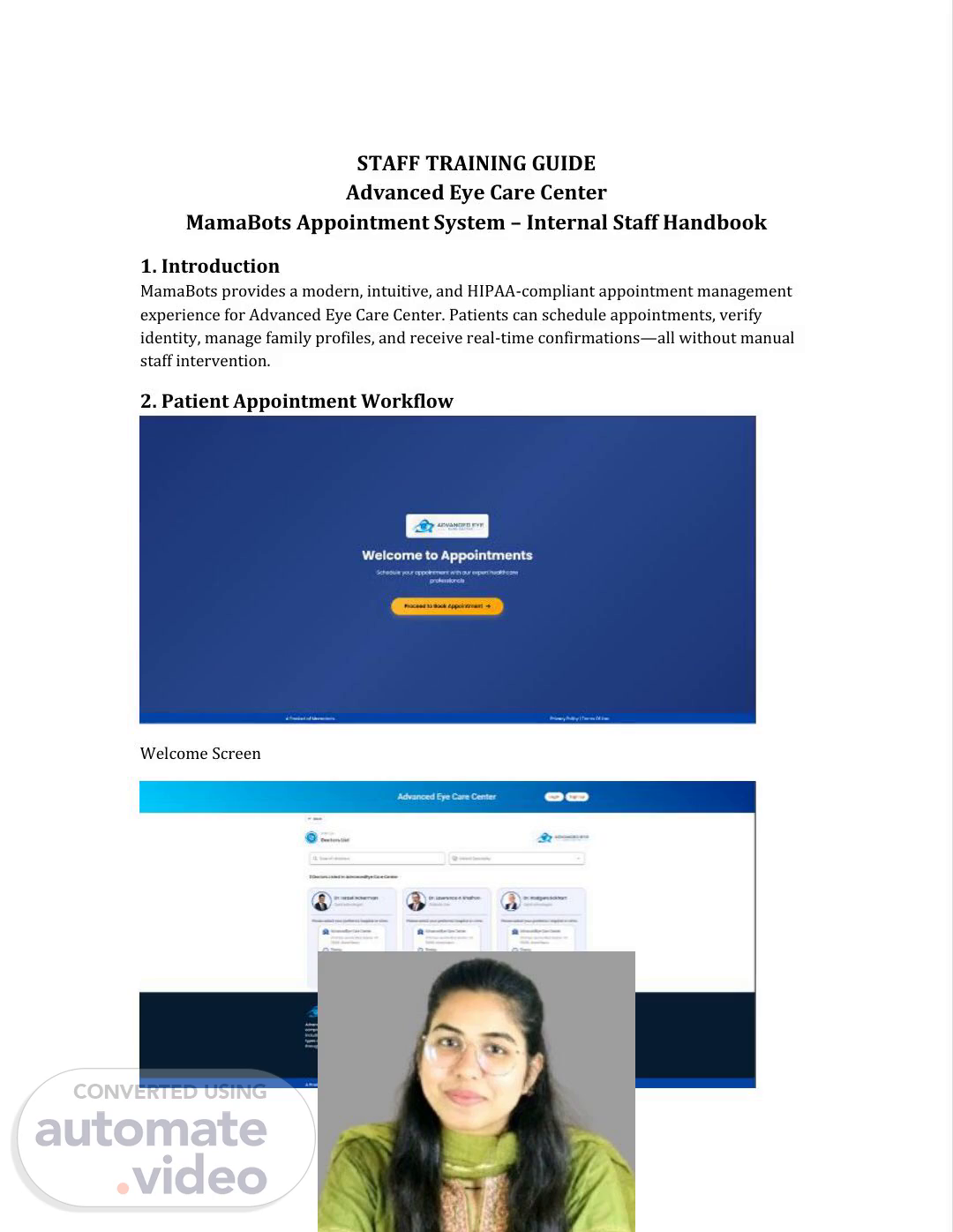
[Audio] The new appointment system is designed to be user-friendly and easy to use, allowing staff to quickly schedule appointments and manage patient information with minimal effort required from them. This system is also HIPAA compliant, ensuring that all sensitive patient data is protected and secure. The main objective of this system is to streamline clinic operations by reducing the workload of staff members, enabling them to focus on more critical tasks. The system allows staff to easily access and view patient records, verify identities, and confirm appointments in real-time. It also enables staff to create and manage family profiles, making it easier for families to receive care together. The system's intuitive interface makes it simple for staff to navigate and find what they need quickly. By implementing this new appointment system, clinics can improve patient satisfaction and reduce errors caused by manual processes. The system's automated features help minimize staff intervention, allowing staff to concentrate on high-priority tasks. Overall, the new appointment system is an essential tool for streamlining clinic operations and enhancing patient care..
Scene 2 (1m 18s)
[Audio] The Doctor Selection Screen is designed to enable patients to choose their preferred doctor from a list of available options. This screen allows patients to view the availability of different doctors and book an appointment with their chosen physician. The Appointment Date & Timeslot Selection module enables patients to specify the date and time of their appointment. By integrating these two functions, the system provides a convenient and efficient experience for both patients and staff..
Scene 3 (1m 49s)
[Audio] The patient details entry screen is used to gather information about each patient, which is essential for delivering quality healthcare services. The information collected on this screen includes demographic data, medical history, allergies, and other vital details that help clinicians make informed decisions about patient care. A standardized patient details entry screen ensures consistency and accuracy in collecting patient data, facilitating easy tracking of patient records and providing seamless care. The screen typically includes fields for collecting patient demographics, medical history, allergies, and other relevant health information. Clinicians may also use the screen to record additional information or express concerns about individual patients. The patient details entry screen is an indispensable tool in supporting the delivery of effective patient care..
Scene 4 (2m 44s)
[Audio] Staff should encourage patients to utilize the portal to minimize wait times. Keeping provider schedules up-to-date ensures that all patients can be seen on time. Reviewing daily sync reports helps identify any discrepancies or errors. If such issues are found, they must be addressed promptly. Consistent communication is essential when interacting with patients and families. Using standardized phrases helps maintain clarity and efficiency. The multi-patient feature allows families to schedule appointments for multiple family members at once. This feature can greatly benefit families who have multiple children or siblings. Utilizing the user dashboard enables staff to effectively manage bookings and appointments. By doing so, staff can ensure a smooth workflow and minimize delays..
Scene 5 (3m 33s)
[Audio] The hospital's electronic health record (EHR) system allows staff to access the OTP verification screen to verify patient identities and ensure secure authentication. The OTP verification screen provides a secure way for patients to log into the system using one-time passwords. This module also enables staff to view and manage multiple patient profiles simultaneously, streamlining family appointment scheduling. By utilizing this feature, staff can efficiently manage complex patient relationships and provide seamless care experiences..
Scene 6 (4m 12s)
[Audio] The user sign-up process is designed to guide new patients through the registration process with ease. New patients are guided through each step of the process, which includes providing identification documents and other relevant information. The system verifies all provided information against a database of known patient records. If any discrepancies are found, the system alerts staff to investigate further. Automated workflows help streamline the process by automatically assigning tasks and sending notifications. Real-time notifications keep staff informed throughout the process. By following these steps, new patients are quickly set up and ready to start treatment..
Scene 7 (4m 54s)
[Audio] The front desk staff are responsible for assisting walk-in patients with using the system. They also need to confirm identities and provide guidance on OTP and booking flow. Additionally, they review booked appointments in OpenPM and manage rescheduling and cancellations when necessary. The administrative staff are accountable for ensuring that provider schedules in OpenPM are updated and for monitoring daily sync status. They also handle escalations or special scheduling cases and track patient feedback to identify recurring issues. The clinical staff are responsible for viewing assigned appointments and preparing for scheduled patient loads. Furthermore, they notify administrative staff about any unavailable timeslots or exceptions..
Scene 8 (5m 40s)
[Audio] The user initiates the online scheduling process by accessing the self-service appointment booking flow. The user selects the appropriate appointment reason from the provided options. The user confirms the patient's available time slots to ensure a smooth scheduling process. The user verifies that they have received the One-Time Password (OTP) and checks the spam folder if necessary. The user creates an account if required. The user accesses the Frequently Asked Questions (FAQ) section for additional guidance or clarification on using the system..
Scene 9 (6m 20s)
[Audio] Here are the common issues and solutions for the patient portal system. If a patient does not receive an OTP, they can try checking their spam or junk folder to see if it has been sent there by mistake. If the issue persists, they can resend the OTP from the login page. Additionally, patients should confirm that their email address is spelled correctly. If a patient's timeslot is not appearing on the system, they may need to log back into the system and refresh their browser. This will allow the timeslot to be displayed again. Alternatively, they can also try clearing their browser cache and cookies. This will ensure that any cached data is removed and the timeslot is displayed correctly. Patients who have forgotten their password can reset it using the password reset feature. They can enter their username and click on the "Forgot Password" button to generate a new password. The new password will then be emailed to them. Patients who have forgotten their username can use the "Username Recovery" tool to recover their username. They can enter their email address and click on the "Recover Username" button to retrieve their username. Patients who have forgotten both their password and username can contact our support team for assistance. Our support team will guide them through the process of resetting their password and retrieving their username. Patients who have received a notification about a scheduled appointment but do not want to keep it can cancel it using the cancellation feature. They can enter their appointment details and click on the "Cancel Appointment" button to remove the appointment from their schedule. Patients who have received a notification about a rescheduled appointment can view the updated appointment details by clicking on the link provided in the notification. Patients who have received a notification about a cancelled appointment can view the reason for the cancellation by clicking on the link provided in the notification. Patients who have received a notification about a new appointment can view the appointment details by clicking on the link provided in the notification. Patients who have received a notification about a reminder can view the reminder details by clicking on the link provided in the notification. Patients who have received a notification about a prescription refill can view the prescription details by clicking on the link provided in the notification. Patients who have received a notification about a lab result can view the lab result details by clicking on the link provided in the notification. Patients who have received a notification about a test result can view the test result details by clicking on the link provided in the notification. Patients who have received a notification about a billing statement can view the billing statement details by clicking on the link provided in the notification. Patients who have received a notification about a payment due can view the payment due details by clicking on the link provided in the notification. Patients who have received a notification about a payment receipt can view the payment receipt details by clicking on the link provided in the notification. Patients who have received a notification about a payment confirmation can view the payment confirmation details by clicking on the link provided in the notification. Patients who have received a notification about a payment history can view the payment history details by clicking on the link provided in the notification. Patients who have received a notification about a payment plan can view the payment plan details by clicking on the link provided in the notification. Patients who have received a notification.
Scene 10 (9m 55s)
[Audio] The practice has been using OpenPM for scheduling appointments since its inception. The system allows for easy management of schedules and has enabled the practice to streamline their workflow. However, there have been some issues with the system that need to be addressed. Specifically, the open schedule feature has been causing problems. The practice's open schedule feature has been blocked or closed due to various reasons such as lack of staffing or other operational issues. This has resulted in the practice being unable to accept new bookings or reschedule existing ones. As a result, the practice has had to rely on administrative intervention to manage the schedule, which can be time-consuming and inefficient. To address this issue, the practice has implemented measures to confirm with administrators to adjust the availability of the open schedule. This includes notifying patients when a booking is made and confirming whether the chosen doctor or time slot is available. If a patient books the wrong doctor or time, staff must manually update the appointment through OpenPM. In cases where patients cannot add family members to their profiles, staff must verify that the patient is logged in and check the profile information format to ensure it meets the required standards. In order to resolve these issues, the practice needs to work closely with the administrators to fine-tune the system and optimize its functionality. By doing so, the practice can improve its efficiency and reduce the reliance on manual updates. Additionally, the practice should consider implementing additional features or tools to enhance the user experience and provide better support for patients..
Scene 11 (11m 37s)
[Audio] Staff should encourage patients to utilize the portal to reduce waiting time. Maintaining accurate provider schedules is also crucial. Reviewing daily sync reports helps identify discrepancies. Standardized communication messages are used to ensure consistency. The multi-patient feature is promoted for family groups. A cheat sheet provides guidance on accessing appointments, verifying patient logins, providing assistance, and handling failed bookings..
Scene 12 (12m 9s)
[Audio] The contact information provided on this slide includes an email address, a phone number, a location, and a physical address. This information enables users to get in touch with MamaBots for any questions or issues they may have regarding the appointment system. The contact details are available to facilitate communication between users and MamaBots..