Scene 1 (0s)
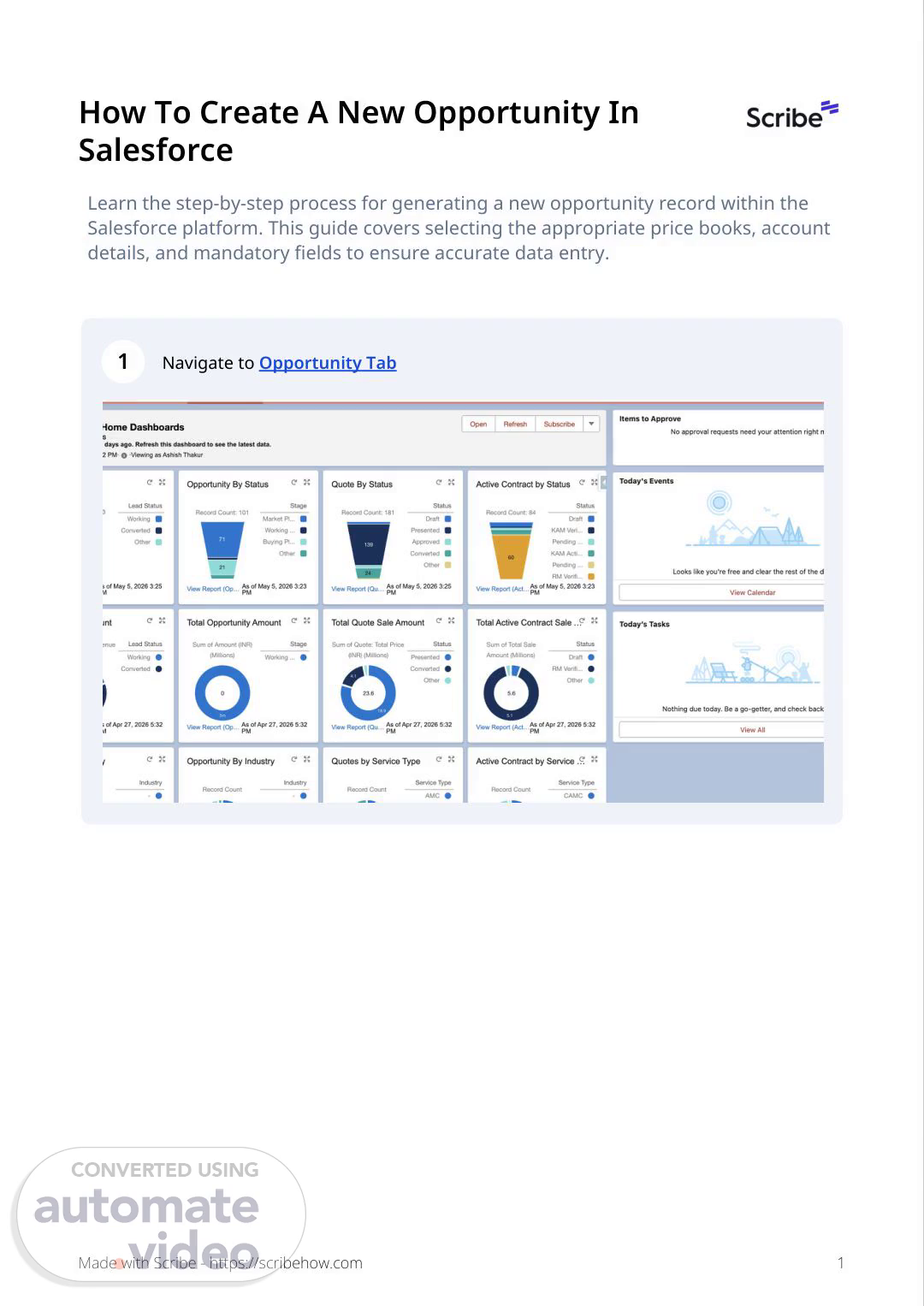
[Audio] How To Create A New Opportunity In Salesforce Learn the step-by-step process for generating a new opportunity record within the Salesforce platform. This guide covers selecting the appropriate price books, account details, and mandatory fields to ensure accurate data entry. 1 Navigate to Opportunity Tab Made with Scribe - https://scribehow.com 1.
Scene 2 (24s)
[Audio] 2 Click "Opportunities" 3 Click "New" Made with Scribe - https://scribehow.com 2.
Scene 3 (32s)
[Audio] 4 Type "Opportunity Demo" 5 Click the "Price Book" field. Made with Scribe - https://scribehow.com 3.
Scene 4 (41s)
[Audio] 6 Type "tax" 7 Click "CSS List Price with Tax." Made with Scribe - https://scribehow.com 4.
Scene 5 (50s)
[Audio] 8 Click the "Sale Price Book" field. 9 Type "tax" Made with Scribe - https://scribehow.com 5.
Scene 6 (59s)
[Audio] 10 Click "List Printed Price List Which Includes First Sale Tax" 11 Click the "Payment Terms" field. Made with Scribe - https://scribehow.com 6.
Scene 7 (1m 10s)
[Audio] 12 Click "21 NET" 13 Click the "*Account Name" field. Made with Scribe - https://scribehow.com 7.
Scene 8 (1m 25s)
[Audio] 14 Click "JANA SMALL FINANCE BANK LTD." 15 Click the "*Close Date" field. Made with Scribe - https://scribehow.com 8.
Scene 9 (1m 37s)
[Audio] 16 Click "31" (End of Current Month) 17 Click the "LOB " field Made with Scribe - https://scribehow.com 9.
Scene 10 (1m 48s)
[Audio] 18 Click "PowerGen" 19 Click the "Sub LOB " field Made with Scribe - https://scribehow.com 10.
Scene 11 (1m 59s)
[Audio] 20 Click "LHP" 21 Click the "Service Type " field Made with Scribe - https://scribehow.com 11.
Scene 12 (2m 7s)
[Audio] 22 Click "CAMC" 23 Click the "Stage " field Made with Scribe - https://scribehow.com 12.
Scene 13 (2m 16s)
[Audio] 24 Click "Market Platform" 25 Click "Save" Made with Scribe - https://scribehow.com 13.