Scene 1 (0s)
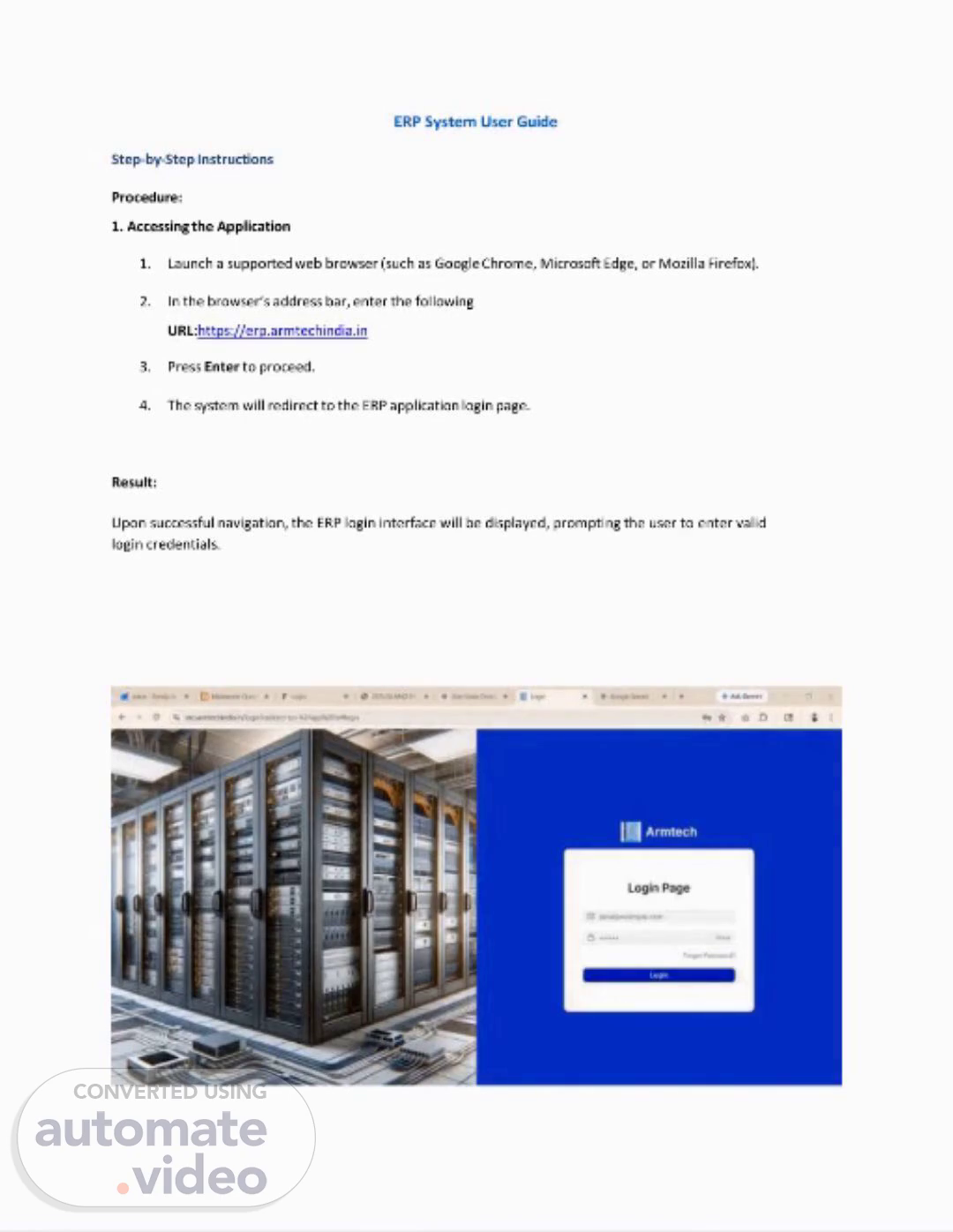
ERP System User Guide Step-by-Step Instructions Procedure: 1. Accessingthe Application 1. Launch a supportedweb browser (such as GoogleChrome, MicrosoftEdge, or MozillaFirefox). 2. In the browser’s address bar, enter the following URL:https://erp.armtechindia.in 3. Press Enter to proceed. 4. The system will redirect to the ERP applicationlogin page. Result: Upon successful navigation, the ERP login interface will be displayed, prompting the user to enter valid login credentials..
Scene 2 (54s)
[Audio] The user must log into the ERP system using their assigned user ID and password. The user must enter their assigned user ID and password correctly to access the ERP system. The user must fill in the correct user ID and password in the correct order. The user must enter their user ID and password in the order specified by the system. The user must not enter any incorrect information. The user must enter their user ID and password with care and attention to detail. The user must pay close attention to spelling, case sensitivity, and special characters when entering their user ID and password. The user must be aware that the system may require additional authentication beyond just a user ID and password. The user must also be aware that the system may have specific requirements for certain users. The user must understand that the system may have different levels of access depending on the user's role. The user must be aware that the system may have specific security measures in place to prevent unauthorized access. The user must use the correct user ID and password to avoid any issues or errors. The user must follow the instructions provided by the system to ensure proper access. The user must not attempt to bypass or circumvent any security measures. The user must use the system as intended. The user must be aware that the system may have limitations or restrictions on certain features or functions. The user must read and understand the system's documentation and guidelines. The user must be aware that the system may have specific requirements for certain users or groups. The user must use the system responsibly and within its intended purpose. The user must report any issues or errors to the system administrators. The user must keep track of their user ID and password securely. The user must update their user ID and password periodically. The user must be aware that the system may have specific requirements for certain types of data. The user must use the system according to its intended design. The user must be aware that the system may have limitations or restrictions on certain features or functions. The user must use the system in accordance with its policies and procedures. The user must be aware that the system may have specific requirements for certain users or groups. The user must use the system ethically and responsibly. The user must be aware that the system may have limitations or restrictions on certain features or functions. The user must use the system according to its intended design. The user must be aware that the system may have specific requirements for certain users or groups. The user must use the system in accordance with its policies and procedures. The user must be aware that the user ID and password are unique identifiers for each user. The user must remember that the user ID and password are confidential and sensitive information. The user must protect this information from unauthorized access. The user must not share or disclose this information to anyone. The user must use the system securely. The user must be aware that the system may have specific requirements for certain types of data. The user must use the system according to its intended design. The user must be aware that the system may have limitations or restrictions on certain features or functions. The user must use the system in accordance with its policies and procedures. The user must be aware that the system may have specific requirements for certain users or groups. The user.
Scene 3 (4m 50s)
[Audio] ## Step 1: Access the ERP System Navigate to the ERP system login page. ## Step 2: Enter Your Username Enter your username in the respective field. ## Step 3: Enter Your Password Begin entering your password in the password field. ## Step 4: Show/Hide Password Option Locate the "Show/Hide Password" icon within or next to the password field. ## Step 5: Display and Hide Password Click the eye icon to display your password in plain text, then click it again to hide the password, masking it with dots or asterisks. The final answer is:.
Scene 4 (5m 35s)
[Audio] The user needs to navigate to the ERP login page, which can be accessed by clicking on the "Login" tab on the top right corner of the webpage. To access the password recovery feature, click on the "Forgot Password?" link located below the password field. This link will take you to the Password Recovery page where you can enter your registered email id or user id to receive a password reset link. Once you have entered your registered email id or user id, click on the "Send Reset Link" or "Submit" button to send the password reset link to your registered email address. To open the password reset email, locate it in your registered email inbox and click on the "Reset Password" link provided in the email. Then, follow the instructions provided in the email to update your password. Alternatively, if you are unable to find the password reset email in your inbox, you may need to check other email folders such as the spam folder or the junk mail folder. Once you have opened the password reset email, enter a new password and confirm it. Finally, click on "Update Password" or "Save" to save your changes..
Scene 5 (6m 50s)
[Audio] I am a researcher at a university, and my research focuses on the development of new materials and technologies that can help reduce greenhouse gas emissions. My goal is to create innovative solutions that can be used by various industries such as manufacturing, construction, and energy. The key to achieving this goal is understanding the complex relationships between different environmental factors, including climate change, air pollution, and water quality. By studying these relationships, we can identify areas where our innovations can have the most significant impact. For example, using advanced materials to improve building insulation can reduce energy consumption and lower carbon emissions. Similarly, developing more efficient transportation systems can decrease air pollution and greenhouse gas emissions. Our research aims to address these challenges and provide practical solutions that can be implemented by industry partners. We believe that by working together, we can make a meaningful difference in reducing greenhouse gas emissions and mitigating the impacts of climate change..